Last updated on November 13, 2018, 10:26 AM
Track Drift Chat interaction in Google Analytics with the Google Tag Manager
Many websites now use chat bots for customer support. A very common chatbot that can be easily integrated into WordPress websites is Drift Chat. But once the chat is installed, it would of course also be nice to have seamless tracking. So in order to track user interactions, such as “opening the chat”, “sending the email address”, or “ending the chat”, the Google Tag Manager comes into play again. If you’re wondering why the hell you should track this at all, an example would be: In order to be able to use the entry of a user email address for later contact in Drift Chat as a conversion in Google Analytics. Subsequently, the Google Ads can be optimized for this conversion = in a certain way again Growth Hacking :)
Custom Event Listener Script for Drift
In order to get all user interactions with Drift in Google Analytics, you need a custom script that sends the events to GA. In the first step, the data is only written to the dataLayer of the Google Tag Manager. Ryan Praski has already put together a very good one here and on his GitHub Page from which you can simply copy it. As a next step, a Custom HTML Tag must also be created in the Google Tag Manager for this event listener code. Ryan Praski’s code is then inserted into this.
Create the tag for the event listener
- Create a new tag
- as Type -> select Custom HTML Tag
- Insert Ryan’s code and save
It’s best to choose a reasonably descriptive name for the tag. In my case I called it “Drift Chat Event Listener – Data Layer Push – Tag”.
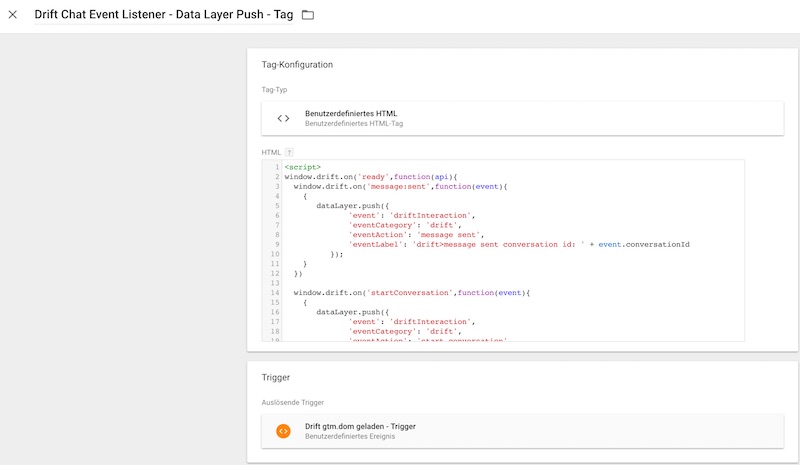
In order for our tag to actually do something (i.e. push data from Drift into the data layer) it needs a trigger that “triggers” it and triggers it.
Trigger for the Drift Chat Event Listener
As mentioned above, we need a trigger that starts the day. For the Drift Chat it is advisable to use every gtm.dom (Document Object Model) change on the page as a condition. The condition for triggering the trigger is every gtm.dom event.

I named the trigger here “Drift gtm.dom loaded” to know what happens with this trigger.
With the trigger and the tag you now actually have your normal GTM setup for tracking events. However, since we are doing a custom data layer push and are not transferring any already defined event data to Google Analytics using Tag Manager, we still have to define variables in the Tag Manager.
Data layer variables in GTM for drift chat tracking
Ryan Praski used certain variables in the Custom Event Listener that also need to be created in GTM. These data layer variables are **eventCategory , eventAction , eventLabel. **Here is a short guide to creating these 3 variables.
- In the Tag Manager workspace, click on “Variables” in the sidebar on the left
- Then click on NEW a little further down under “User-defined variables”.
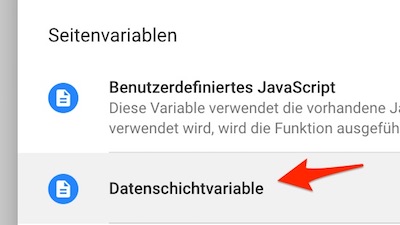
- Select the “data layer variable” as the variable type (= data layer variable)
Then all you have to do is enter the variable name, i.e. for the first variable: “eventAction”
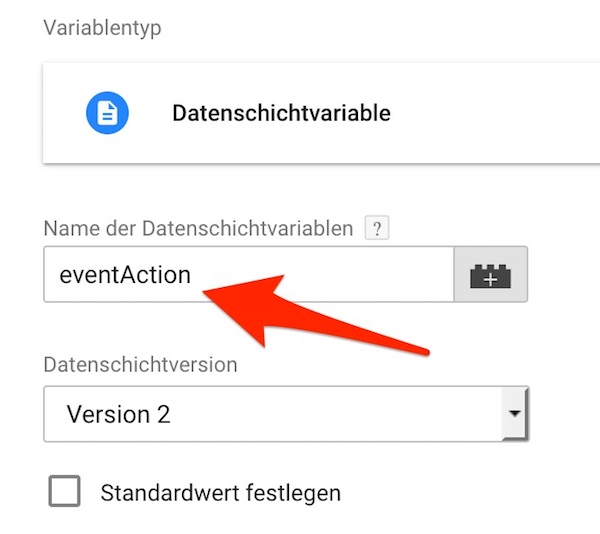
and the same procedure can be done for the other two variables.
Now “push” Drift’s event tracking data from the data layer into Google Analytics
Now we have our event listening script, which “listens” exactly to what is happening in the drift chat. The events that happen are thus written into the data layer (or data layer in plain English) of the Google Tag Manager. So all that’s missing is one tag (and trigger) to get this data from the data layer into Google Analytics :)
So we create our drift event tracking tag:
- Create a new tag
- Tag type: Select “Google Analytics – Universal Analytics”.
- Tracking Type: Select “Event”.
- Select our self-defined variable called “eventCategory” (see below) as the category
- proceed exactly the same as action and label and select our defined variables “eventAction” and “eventLabel”.
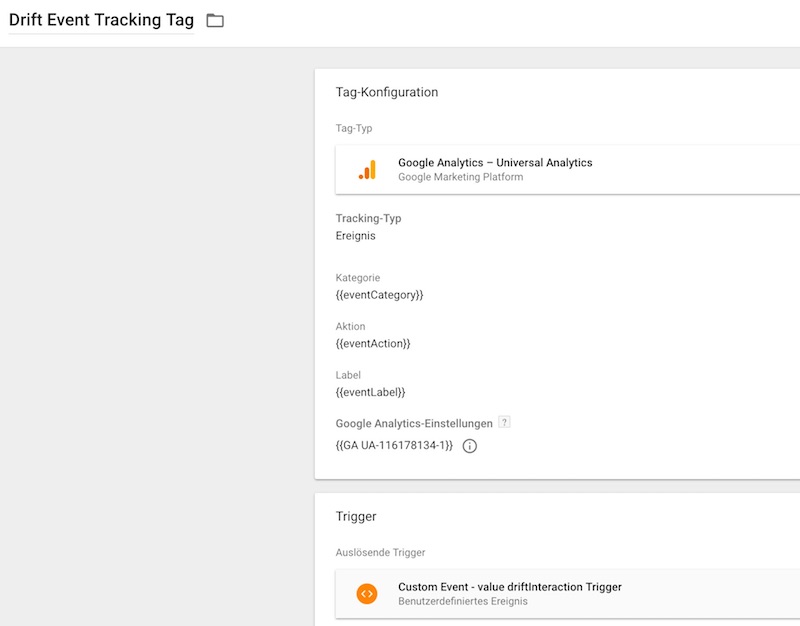
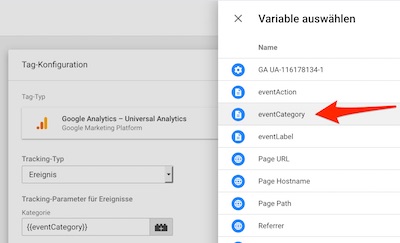
Then only the trigger for the drift event tracking tag is missing, plus:
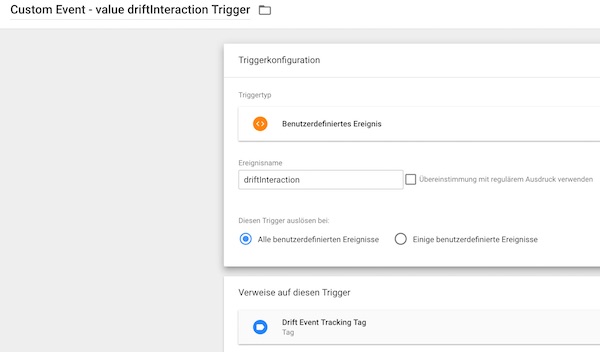
- create a new trigger (or select this as a trigger when creating it for the tag we created above)
- Trigger Type: “Custom Event”
- Event name: driftInteraction
Because this event is already defined in the custom event listening tag and can therefore be used as a trigger condition here. For example, clearly visible here:
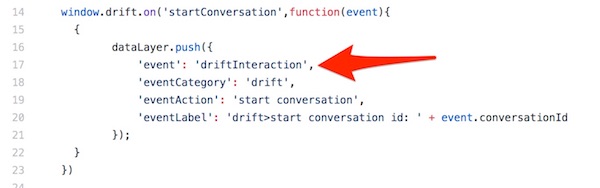
And with that we have fully functional event tracking for Drift Chat :).
The evaluation of drift events in Google Analytics
Now you can see the drift events appear in the events section of Google Analytics.

You can then define goals for drift events in Google Analytics and then use them as conversion goals in Google Ads campaigns. For example, if you have created a Google Ads campaign for lead generation, the “email capture” event would be a very suitable target to optimize the campaign for conversion tracking. There are no limits to your imagination here.
Don’t miss any more blog posts? Click here to register for our newsletter.
More interesting blog posts: