

Last updated on March 16, 2018, 4:22 PM
As is often the case in WordPress there are 2 variants. The manual variant where you have to touch and change certain WordPress files, and the “plugin method” to install Google Tag Manager in WordPress. The advantages of Google Tag Manager (GTM) have already been briefly explained here, and since there are actually only advantages, it makes sense to use this wonderful tool :)
The plugin method to install the GTM in WordPress
Here is a sore plugin called Duracell Tomi’s Google Tag Manager for WordPress that pretty much does all the work for you. Using this plugin you actually only need 3 steps:
- Find and install the plugin
- Activate the plugin in the plugin menu of WordPress.
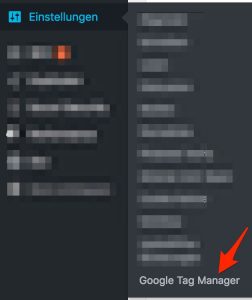
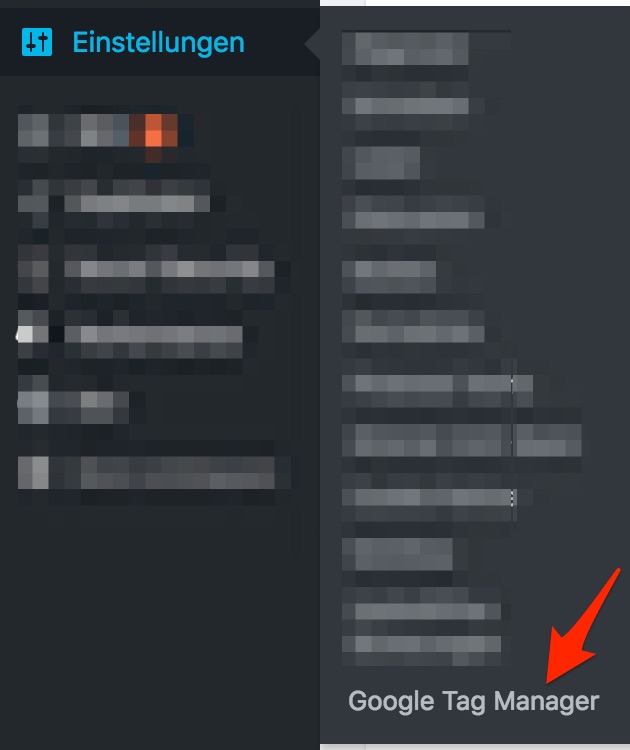
- In the settings click on “Google Tag Manager” and enter the Google Tag Manager Container ID (which you have to copy in the Tag Manager interface before).


The manual method to install Google Tag Manager in WordPress by modifying the header.php file
If you are not afraid to tamper a bit with the header.php files of your theme then I recommend this method, because it saves you again a plugin. The disadvantage here is that you have to repeat this change when you change the theme. First you have to get the install code from the Tag Manager and copy it to a file or the clipboard.
You can find the install code in the GTM here:
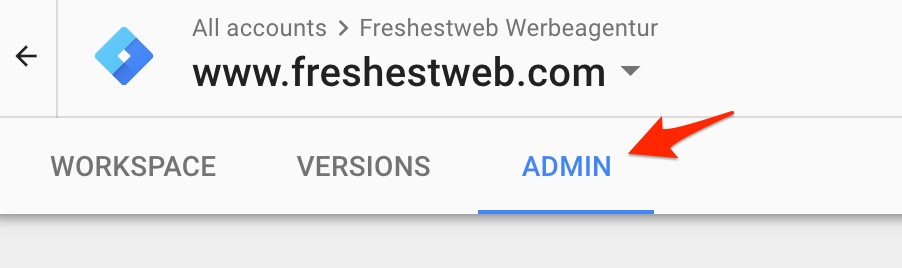
and then
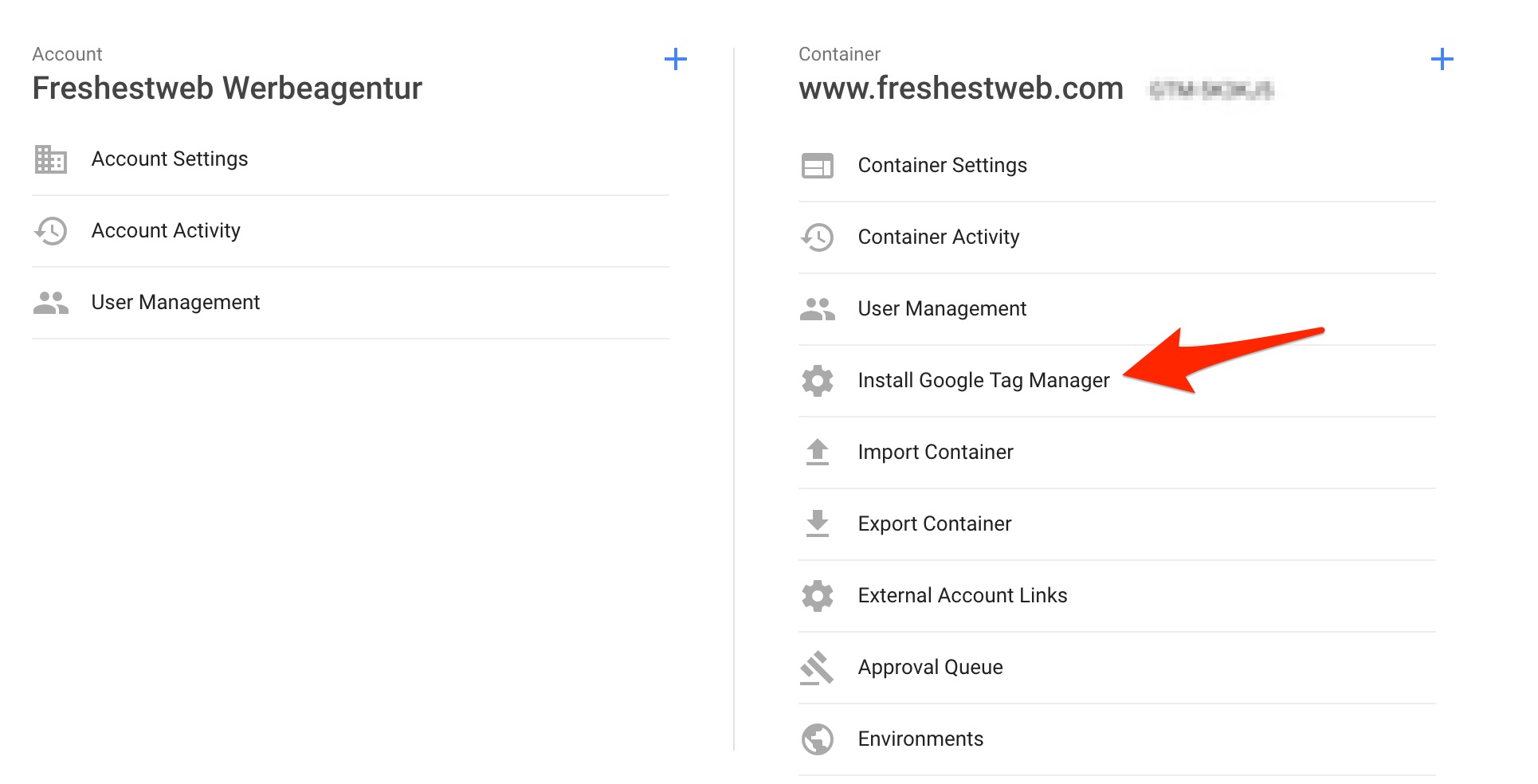
There you take the code for the header and body area. This must then be inserted into the header.php file using the editor (Design -> Editor). It is best to save a version of the header.php before you make the changes. If you are sure about this I would recommend this method. If not, the security variant is probably the plugin method with the Duracell Tomi plugin :).
Once Google Tag Manager is installed cleanly, the next useful step is this overview of helpful Google Tag Manager features and how to use them.