
Last updated on July 31, 2021, 2:25 PM
A small but very useful tip: You can also use Google Analytics Alerts to check whether the website/web server is down. This is very easy because Google Analytics has an integrated alarm function that you can configure and then receive an email notification when certain conditions apply.
Google Analytics Alerts – Notification via email when there is a drop in traffic or 0 users on the website
The easiest way to implement the rule for the alert is to define something like a drop in access as a condition: traffic drop of >80% or even 0 users on the website in a certain period of time, such as the last day.
This makes it more or less clear that something is wrong on the website or on the web server. If there is no message from the webmaster or the web space provider does not send out a warning, it can happen that some time passes before you notice the downtime of the website.
Create an alert for a traffic drop of more than 80%
Step 1: To do this, first go to the respective Google Analytics account and the corresponding property, and there into the respective data view for which the alert should be created. In this case for the data view: “All website data”.
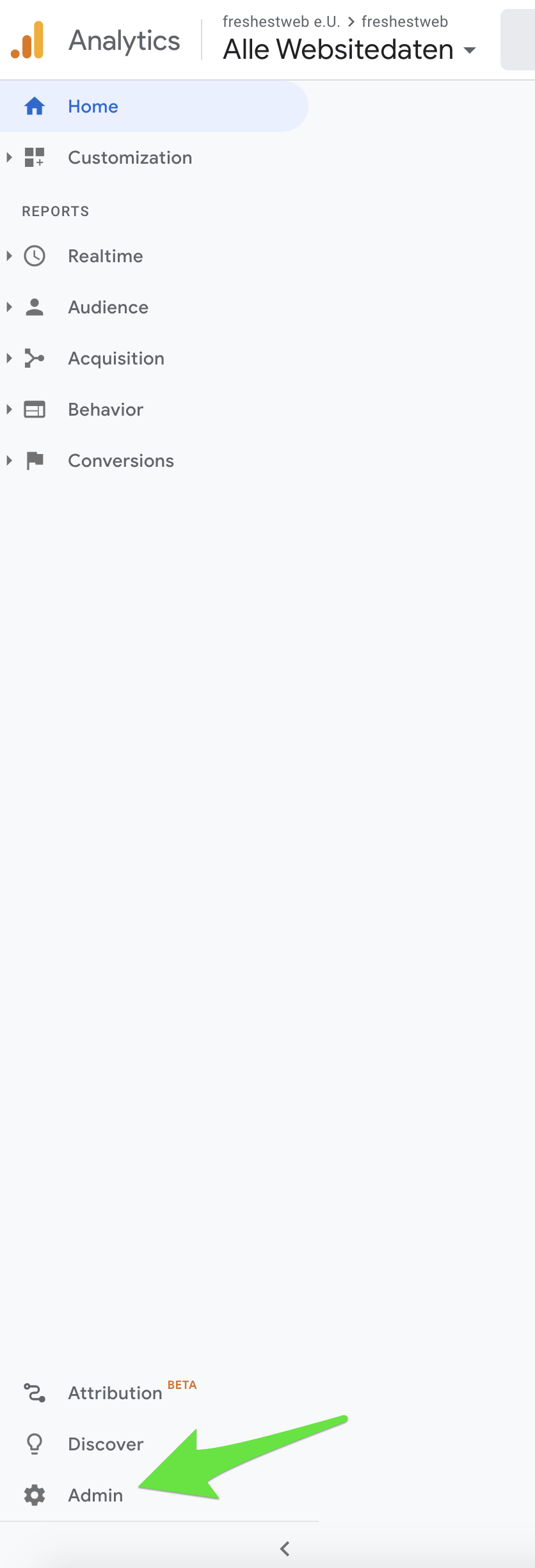
Step 2: Then click on the Admin area link at the bottom right.
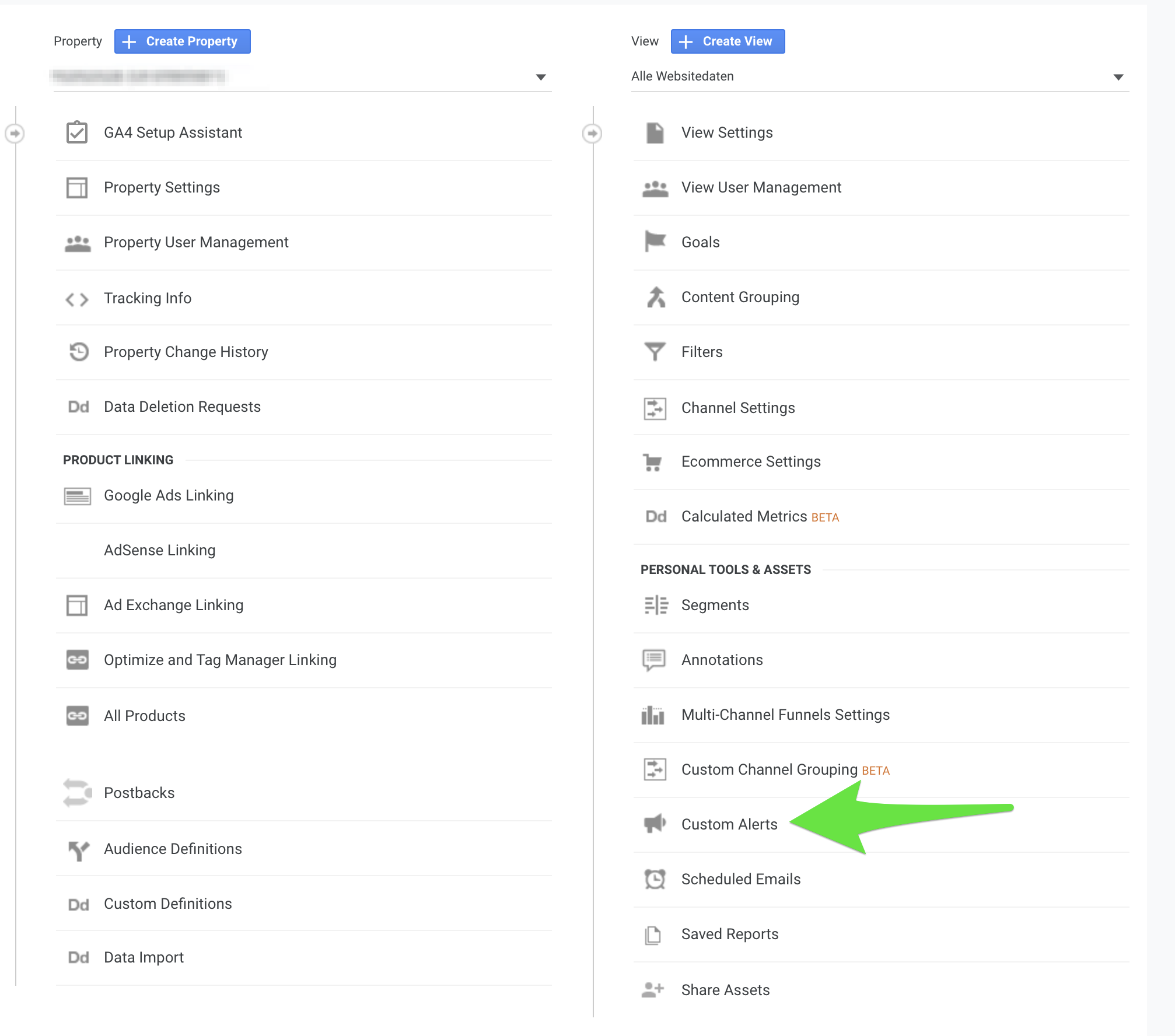
Step 3: The “Custom Alerts” are then visible as a setting option. (Attention: if these are not visible, someone with admin rights in the Google Analytics account must make the settings or grant admin rights to you)
Step 4:
Click on the “New Alert” button and you will be taken to the configuration overview.
You can also have fun with the settings here, as Google Analytics offers a variety of configuration options:
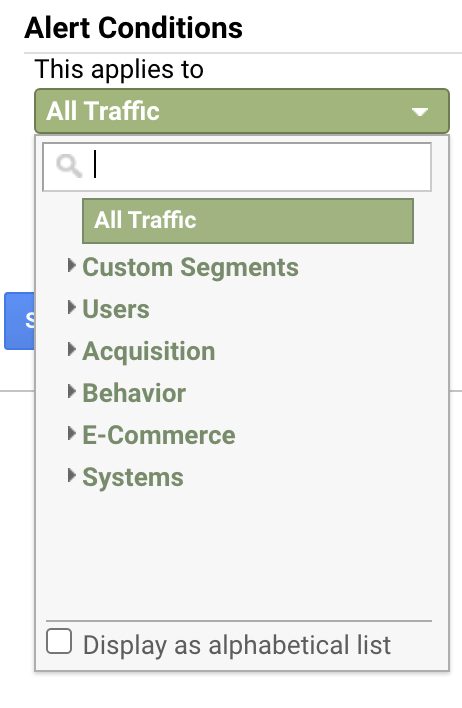
but for our example we want to track a session decrease of > 80% in order to receive email notifications if this condition applies.
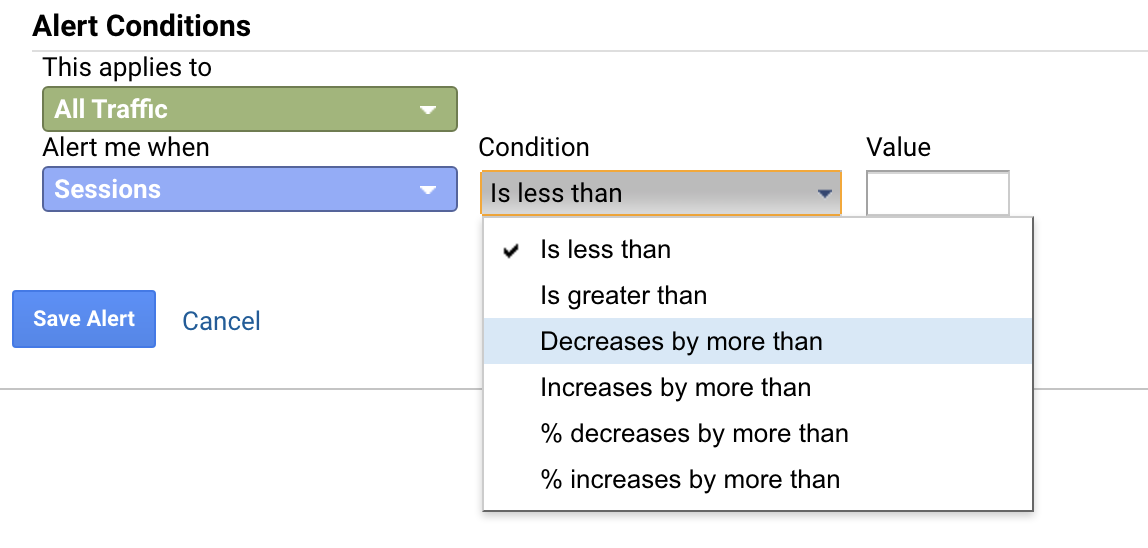
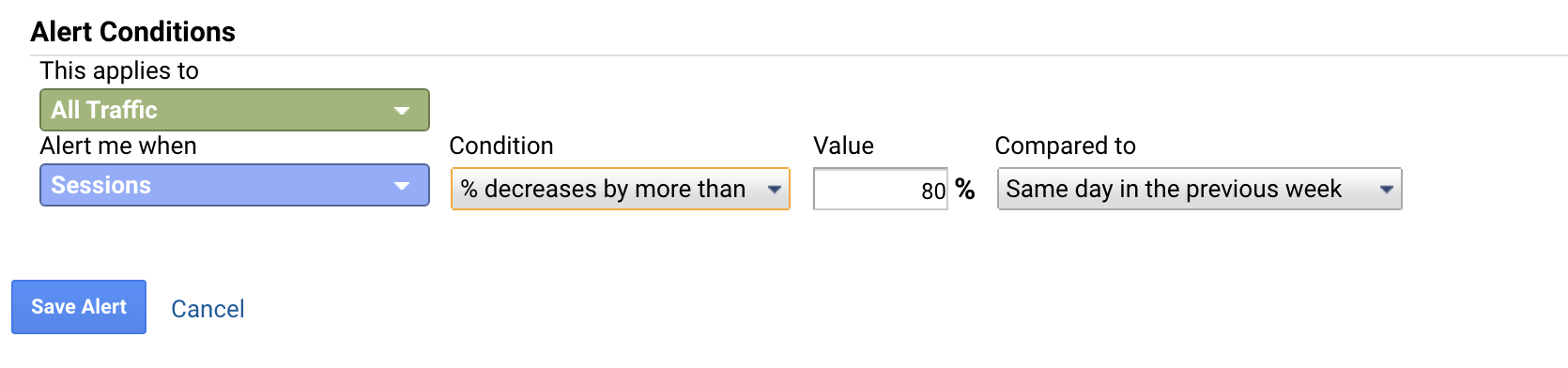
Another good tip: The “same day in the previous week” is very suitable for the comparison day. This means, for example, Sunday is also always compared with Sunday and the respective day of the week with the day of the week.
After making the settings, click on “Save Alert” and you’re done :)
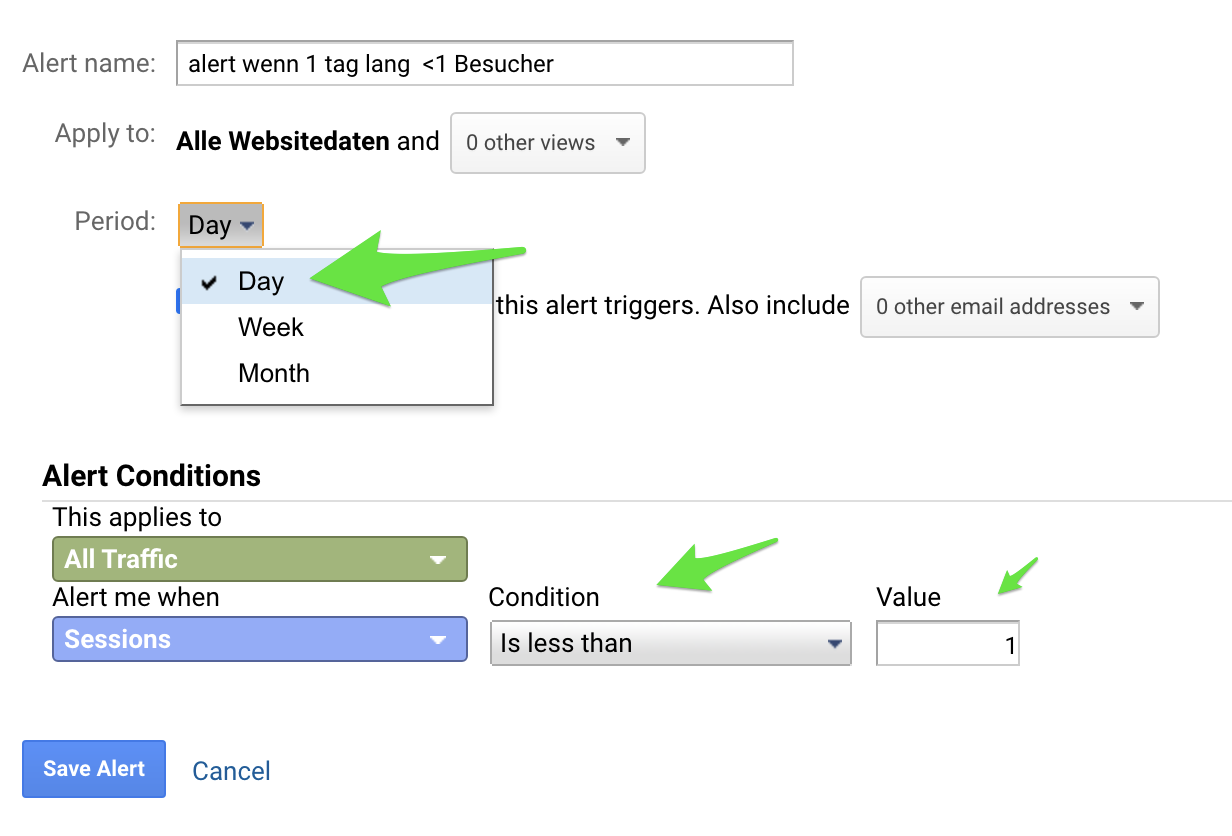
Create the Google Analytics alert for less than 1 session per day - website down
Step 1-3 remain the same.
see above.
Step 4:
Click on the “New Altert” button and you will be taken to the configuration overview.
In the alert settings you can assign a relatively descriptive name, as this will then also be included in the subject of the alert email.
The alert can also be created for several websites and views at the same time (and therefore only needs to be created once to monitor all websites in the account).
Unfortunately, the smallest unit for the time period is only 1 day. It would be great if you could only set 1 hour for heavily frequented pages and maybe even create an exception for the time at night. But Google Analytics is already relatively powerful in the free version, so there’s no need to complain here :)
Furthermore, additional e-mail addresses can also be inserted. By default, the Google Analytics property is sent to the admin.
Google Analytics alert for more 404 page views
If the views of the 404 page increase rapidly, it is a sign that something is probably wrong with individual subpages and links. From a SEO technical point of view, this alert is also interesting, as internal links should not lead to anything and that would have a bad effect on the overall score of the page.
Steps 1-3 remain the same again (see above).
Step 4 – Create New Alert:
- Page Title as a selection

This depends on what exactly your 404 page is named. In most cases the page title is really “404”.
Or the other variant would be to take the path:

An increase in sessions on the 404 page was chosen here as a condition for triggering the alert and thus sending the email. So if there are more than 10 sessions on the 404 page in one day, Google Analytics raises an alarm :)
5th step:
Don’t forget the SAVE Alert and you’re done with the little setup to help with downtime and incorrect linking of pages.